
TPower Customer Support Guide: What Information to Prepare Before Asking for Help
Quick answer
Before contacting customer support, identify the issue and gather the information that helps explain it: the date and approximate time, the page or feature involved, the device and browser, and any exact error message. Describe the steps you actually took, and ask one clear question.
For support options, check TPower Help. Never include your password, one-time verification code, full card number, card security code, or online banking credentials in a message or screenshot.
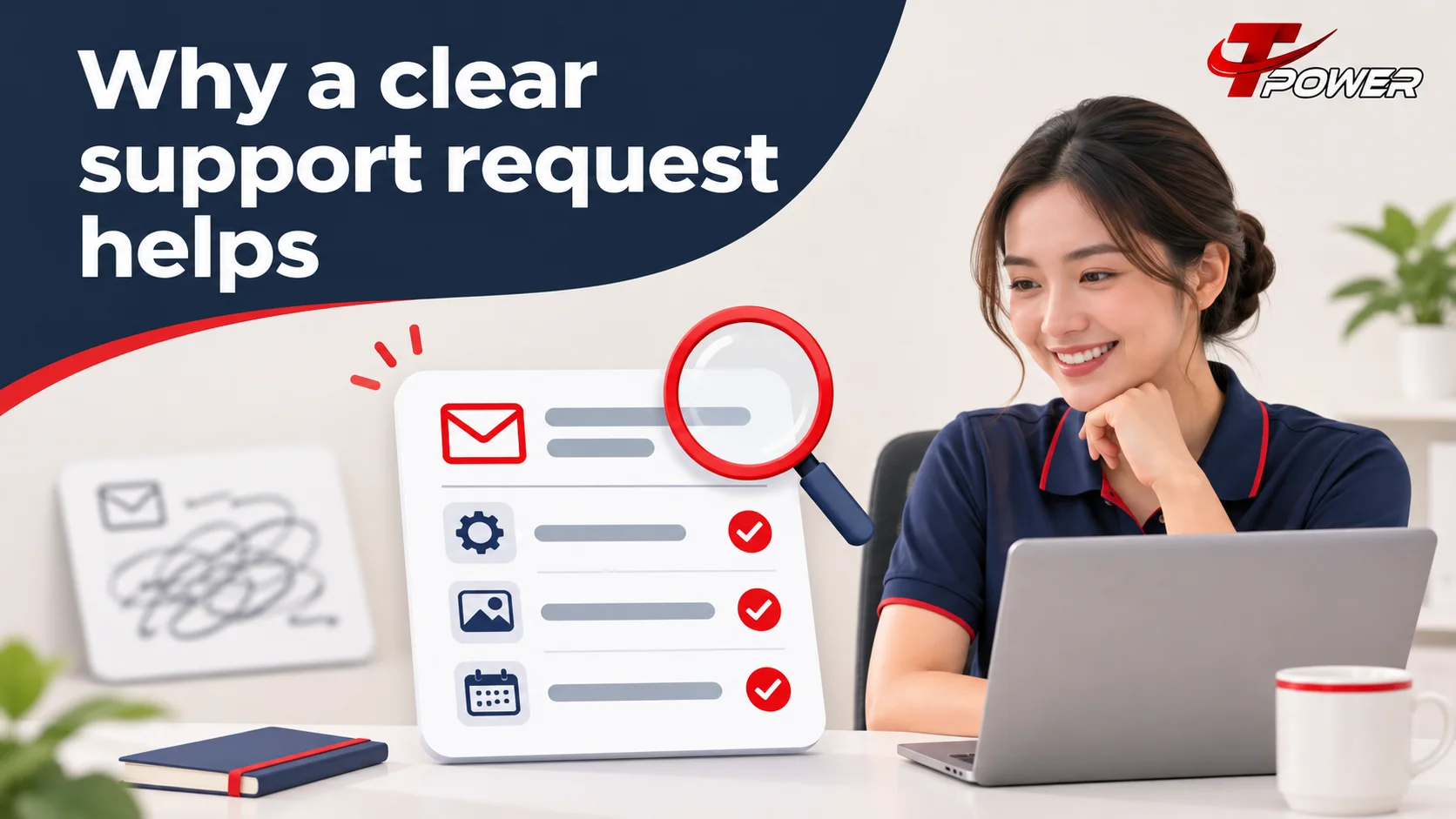
Why a clear support request helps
When a page or feature does not work as expected, it is natural to send a quick message such as “I can’t use it” or “It is not working.” That tells support that something is wrong, but it does not explain what happened or where to begin checking.
A more useful message gives the basic context. It might say that a particular page showed an error at a certain time, on a specific device and browser. If the issue concerns an account or transaction, it can describe the status shown on the screen without sharing sensitive credentials.
The goal is not to write a long report. It is to provide enough accurate information for someone else to understand the situation without asking you to repeat the basics. A short, well-organized request is often easier to review than a long message containing several unrelated problems.
If you are new to the site, start at Tpower Malaysia and use the site’s published Help information. If you need to understand the site’s general structure, the TPower Guide may also help you locate the relevant page.
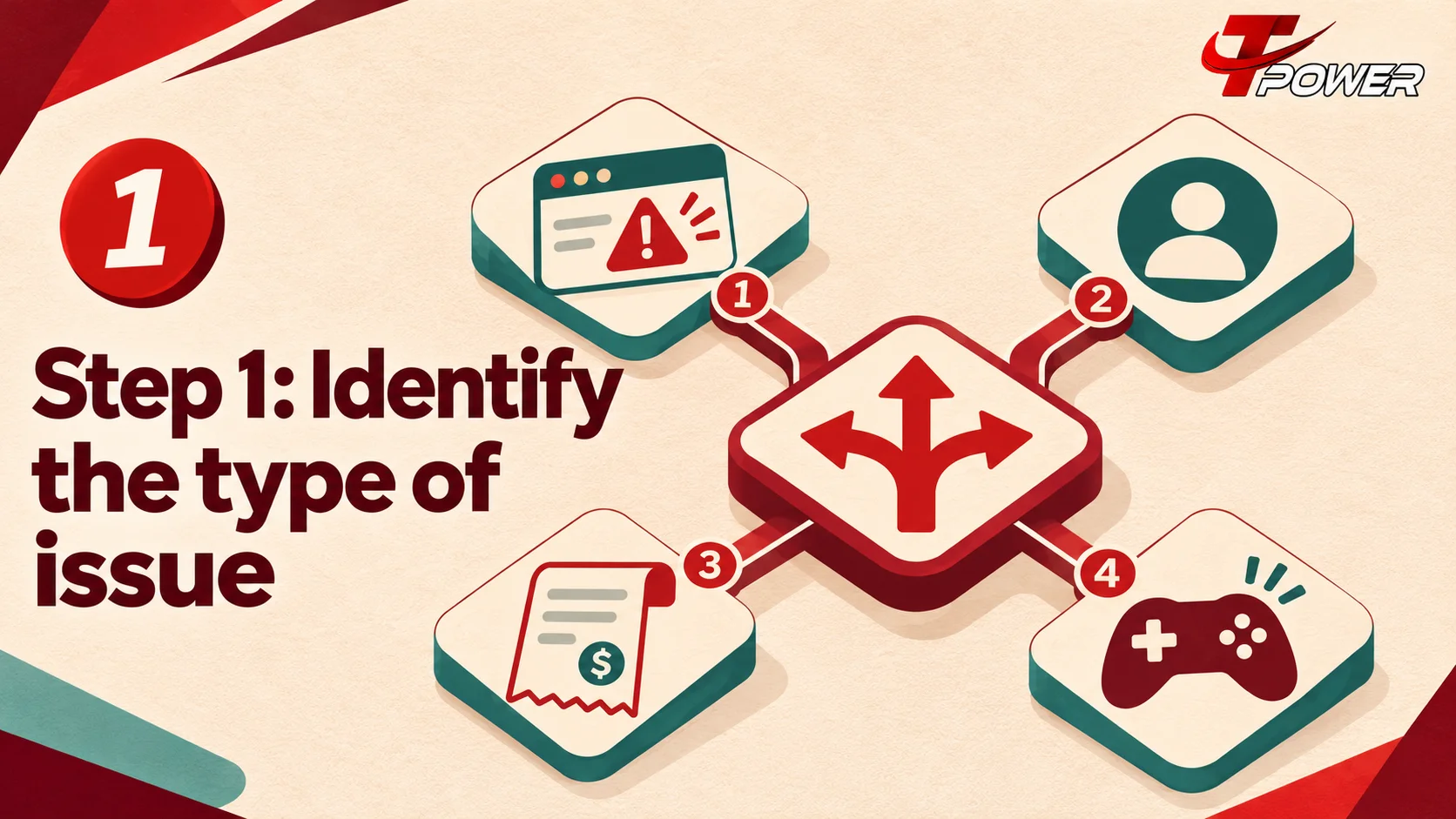
Step 1: Identify the type of issue
Before sending a message, work out what you are trying to ask. Common support questions can involve a page that does not load, an account access issue, a transaction status, a game or feature, or the wording of a promotion.
Try to describe the issue as something you observed, rather than as a conclusion about why it happened. For example:
- “The login page showed an error after I submitted the form.”
- “The transaction page still shows a pending status.”
- “The page stops loading after I select this section.”
- “I’m unsure which terms apply to this offer.”
These statements explain what you saw. They do not assume whether the cause is your device, the website, a payment provider, or another service. Support can investigate the details without first having to correct a guess about the cause.
If you have more than one question, separate them into numbered points. That makes it easier to tell whether the questions are connected and helps prevent one issue from being overlooked among several others.
Step 2: Record when the issue happened
Write down the date and approximate time when you encountered the problem. If you know your time zone, include it. This is particularly helpful when the issue happens intermittently or is no longer visible by the time you send your message.
You do not need to track every second. “Around 8:30 p.m. Malaysia time” is more useful than “earlier today,” especially if you contact support later or need to follow up.
If the issue happened more than once, list the occasions separately. For instance, you could say that it happened at about 8:30 p.m. and again around 9:00 p.m. Avoid describing repeated attempts as a continuing problem if you are unsure whether each attempt produced the same result.
For a transaction question, record the status and the time you checked it. Avoid repeating a payment or submitting duplicate requests just because the status has not changed. Check the information shown in your account and follow the current instructions provided through the site’s official Help route.

Step 3: Note the page or feature involved
Tell support which part of the site you were using. A page title or page address can be helpful. If the issue involves a particular game, provider, promotion, or account section, name it as accurately as you can.
You can also explain what you were trying to do immediately before the issue appeared. For example:
- “I opened the page from the main menu.”
- “I selected the account section and then saw the message.”
- “I was reading the offer conditions and had a question about one requirement.”
Keep this description factual. You do not need to provide a full history of everything you did on the site if it is unrelated to the problem.
If the issue is about account creation, read the Tpower Register guide first. If it concerns sign-in, review the Tpower Login guide. These guides may answer a straightforward navigation question; if the problem remains, tell support which step or message is unclear.

Step 4: Include useful device and browser details
For a loading, display, or navigation issue, include the device and browser you were using. For example, say whether you were on a phone or computer and name the browser if you know it. If you know your operating system, you can include that too.
Also mention whether you were connected through Wi-Fi or mobile data if it seems relevant to the issue. You do not need to provide your exact network password, router login, or other private network information.
If you tried a basic troubleshooting step, say what it was and what happened afterward. For example, “I refreshed the page and saw the same message” is useful if that is what actually happened. Do not claim to have cleared your browser data, changed networks, or tried another device unless you did.
Avoid trying many different changes at once before noting the original behavior. If you change the browser, device, network, and account settings all at once, it may become difficult to tell which change affected the result. Start by recording what you saw, then follow relevant instructions from the Help or Tutorial pages.
The Tpower Tutorial Guide provides step-by-step material for topics covered there. If your issue is not addressed, include the tutorial step you reached and what happened next.
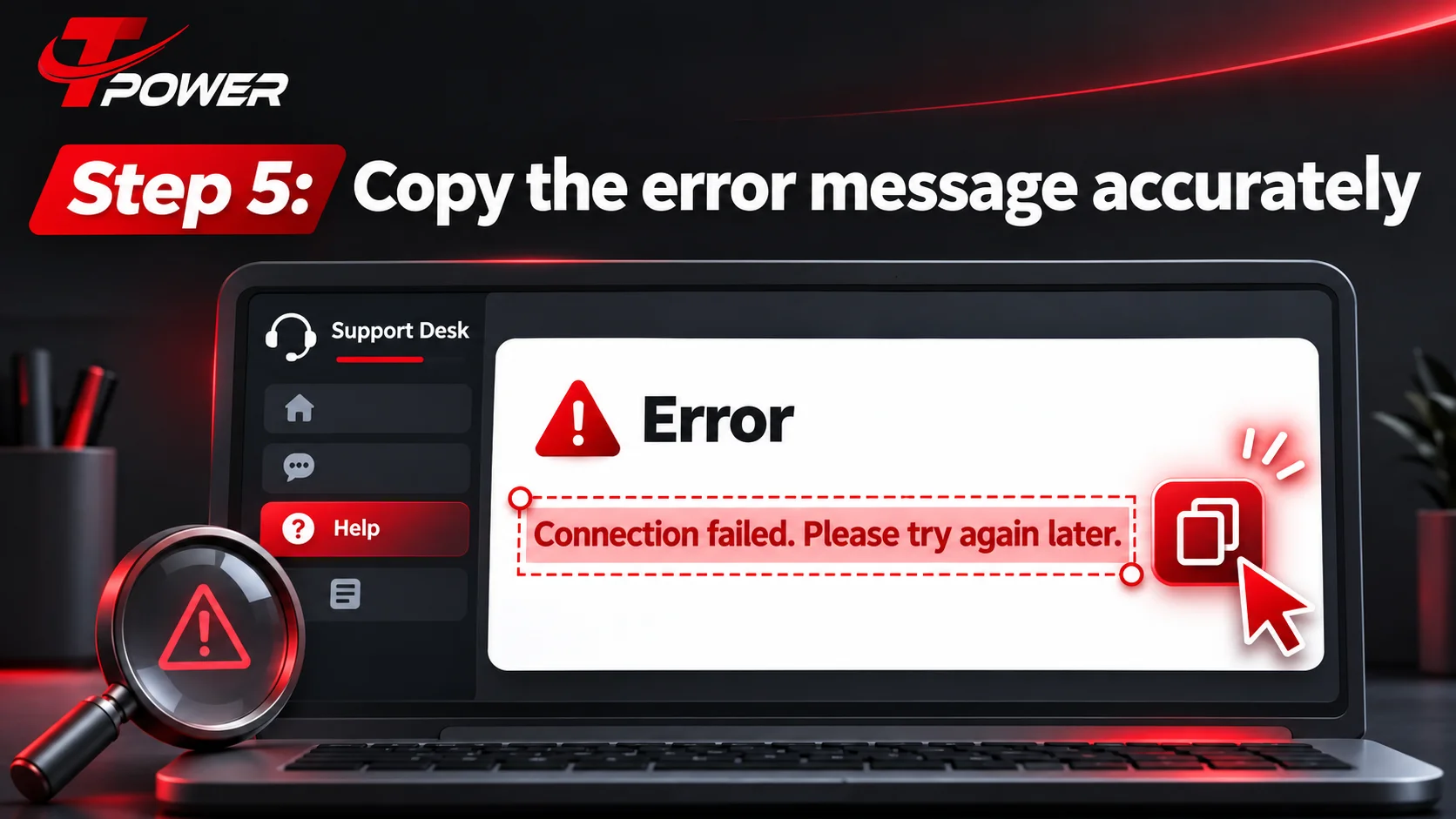
Step 5: Copy the error message accurately
If the page displays an error, copy the message as it appears. Exact wording can help distinguish between different situations. If you cannot copy it, take a screenshot and describe where on the screen it appeared.
Do not paraphrase a technical message if the exact text is visible. A brief note such as “I saw an error” may omit the detail that makes the issue easier to understand.
If the message contains personal information, hide that information before sharing the screenshot. Check the entire image, including browser tabs, address bar, notifications, account names, transaction references, and any chat windows. A screenshot should show the issue—not unrelated private details.
If no error message appeared, say that. Do not invent one or guess what the site may have displayed. “The page kept loading but did not show an error message” is a clear observation.
Step 6: Check the relevant guide or terms
Before contacting support, check whether the site has a page that answers your question. This can save time and help you ask about the part that remains unclear.
For step-by-step questions, review the Tpower Tutorial Guide. For general site navigation, see the TPower Guide. For an offer or promotion question, read the applicable Tpower Terms and Conditions.
When asking about a particular condition, identify the relevant offer and quote or summarize the sentence you are asking about. Avoid sending a vague message such as “Is the promotion okay?” A more specific question might be: “I’m reading the section about eligibility for this offer. Does this condition apply before or after registration?”
The wording on the current page should guide your question. Do not rely only on an old screenshot, an expired post, or someone else’s summary if the current terms are available.
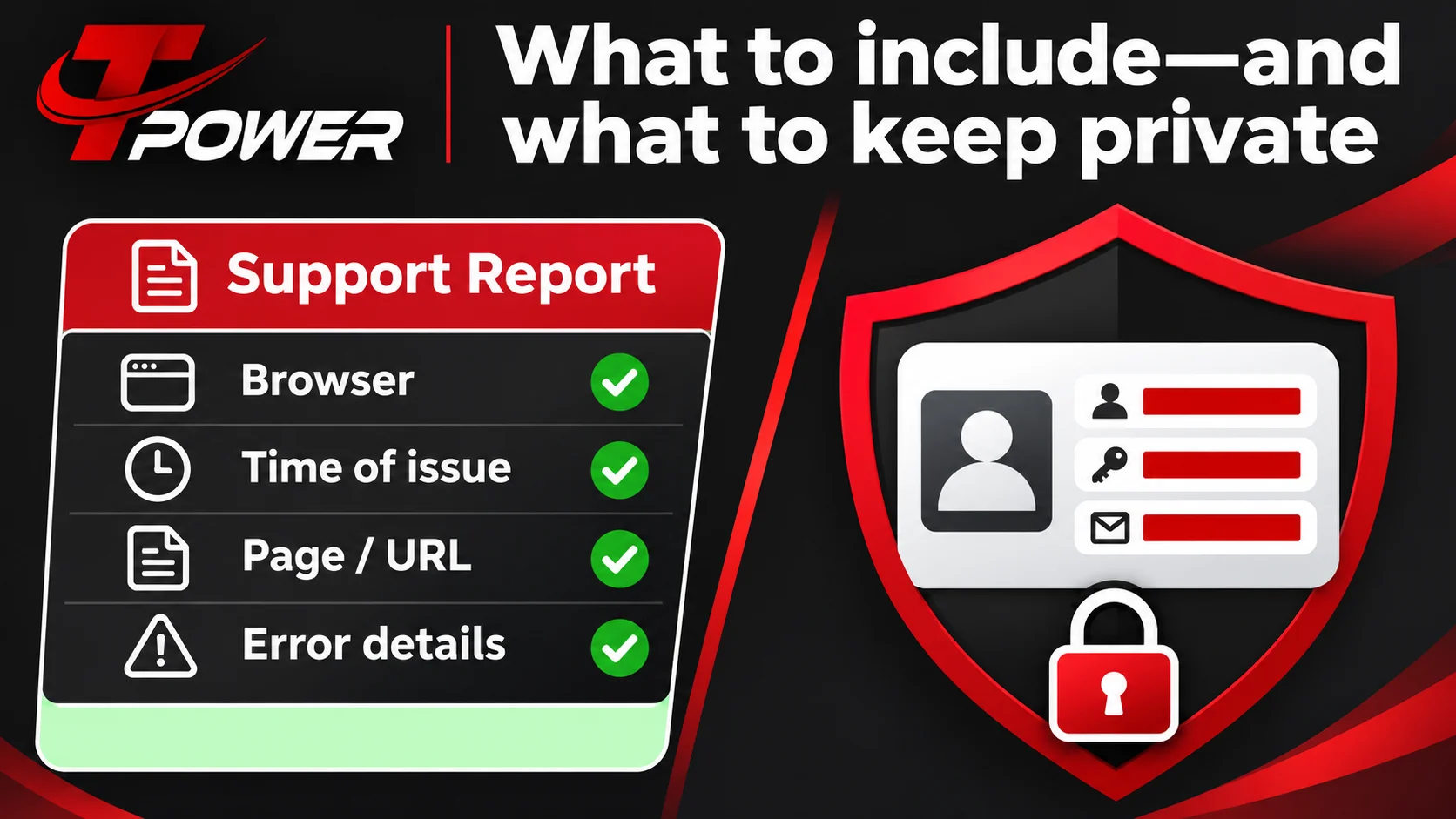
What to include—and what to keep private
A useful message contains enough context to understand the issue, but it does not need to expose your private account information. In general, share only the minimum relevant details through the official support route.
Details that may help
Depending on the issue, useful non-sensitive details can include:
- The date and approximate time
- The page or feature involved
- The device and browser
- The exact error message
- The steps you had just taken
- The status displayed on the relevant page
- A support or transaction reference, if requested through the official channel
Only share details that are relevant and requested. If you are unsure whether a particular piece of information is appropriate to send, ask through the Help page before sending it.
Details you should not share in a message or screenshot
Do not share:
- Your password
- A one-time verification code
- Your card security code
- Your full payment-card number
- Online banking login details
- Private recovery codes
- Unrelated personal documents or messages
A legitimate troubleshooting description should not require you to disclose your password or verification code in plain text. If someone asks you to send those details, do not include them in a reply. Return to the site and check the official Help page for the appropriate contact route.
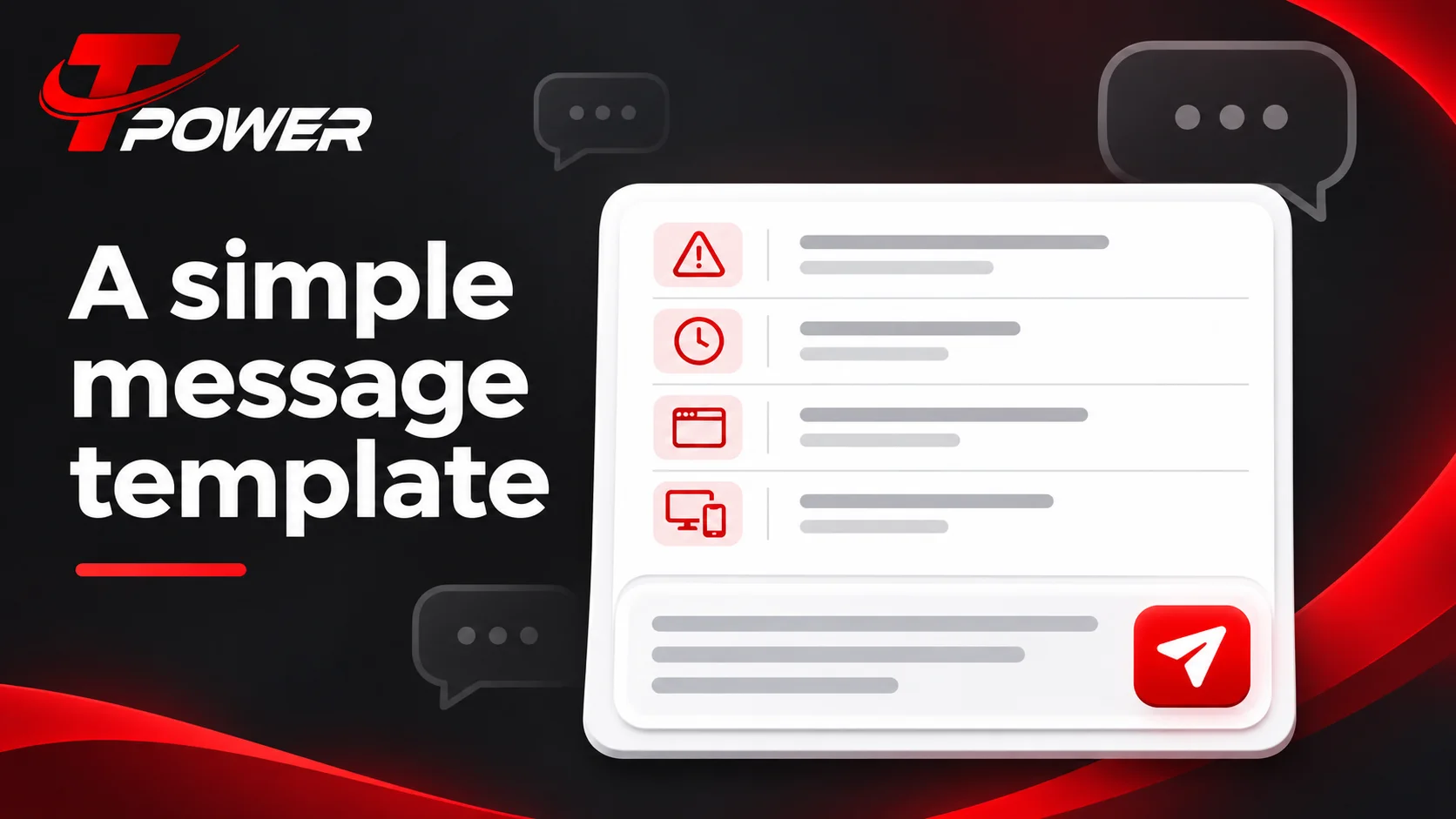
A simple message template
You can use this template to organize a support request. Remove any line that does not apply, and do not include sensitive credentials.
Issue: [Describe the problem in one sentence.]
Date and approximate time: [Include your time zone if known.]
Page or feature: [Name the page, section, or feature.]
Device and browser: [For example, Android phone and Chrome.]
Message shown: [Copy the error, or write “No error message appeared.”]
What I tried: [List only the steps you actually took.]
My question: [Ask one specific question.]
For example:
Issue: The page did not finish loading.
Date and approximate time: Tuesday, around 8:30 p.m. Malaysia time.
Page or feature: The account section.
Device and browser: Android phone using Chrome.
Message shown: No error message appeared; the loading indicator remained on screen.
What I tried: I refreshed the page once.
My question: Could you advise what I should check next?
This example is only a format for describing an issue. Replace it with your real details; do not copy it as if the example occurred to you.
Examples for common questions
If you cannot log in
First check that you are using the correct page and follow the instructions in the Tpower Login guide. If you still need help, describe the message shown, when it appeared, and which device and browser you used.
Do not include your password or verification code in the request. If you are concerned about account security, use the contact route listed on the Help page and avoid sharing account credentials in screenshots or public comments.
If you have a registration question
Review the Tpower Register guide and identify the specific step that is unclear. When you contact support, say what you expected to happen and what happened instead. Do not send a photo of identity documents or other sensitive information unless the official instructions specifically require it through an appropriate secure process.
If you have a transaction-status question
Describe the status shown and when you checked it. If the site provides a reference number, use it only through the official support route and only as requested. Do not send complete banking credentials or payment-card security details.
Avoid submitting a duplicate request solely because you have not yet received an update. Check the current instructions first and ask support what to do next if the status remains unclear.
If a page or game does not display correctly
Name the page or feature, the device and browser, the approximate time, and any error message. If you can, explain the last step you took before the display problem began.
A screenshot can provide context, but make sure it does not reveal account details, passwords, verification codes, payment information, or unrelated notifications.
If you have a question about an offer
Check the current offer information and its terms. Include the offer name and identify the condition you want explained. A specific question helps avoid confusion between different offers or eligibility rules.
How to use screenshots safely
Screenshots can help show an error or an unexpected page layout, but they can also reveal information you did not intend to share. Before attaching one, review the whole image carefully.
Crop the screenshot to the relevant part of the screen where possible. Hide private details such as account identifiers, balances, transaction information, email addresses, browser notifications, and open chat messages. Do not leave a password or verification code visible.
If the screenshot is not necessary to explain the issue, a written description may be enough. You can say what the page displayed, where the message appeared, and what you were doing just before it appeared.
Never edit a screenshot in a way that changes the meaning of an error or hides details that support needs to assess the issue. If you redact private information, keep the message itself readable.
How to follow up without creating confusion
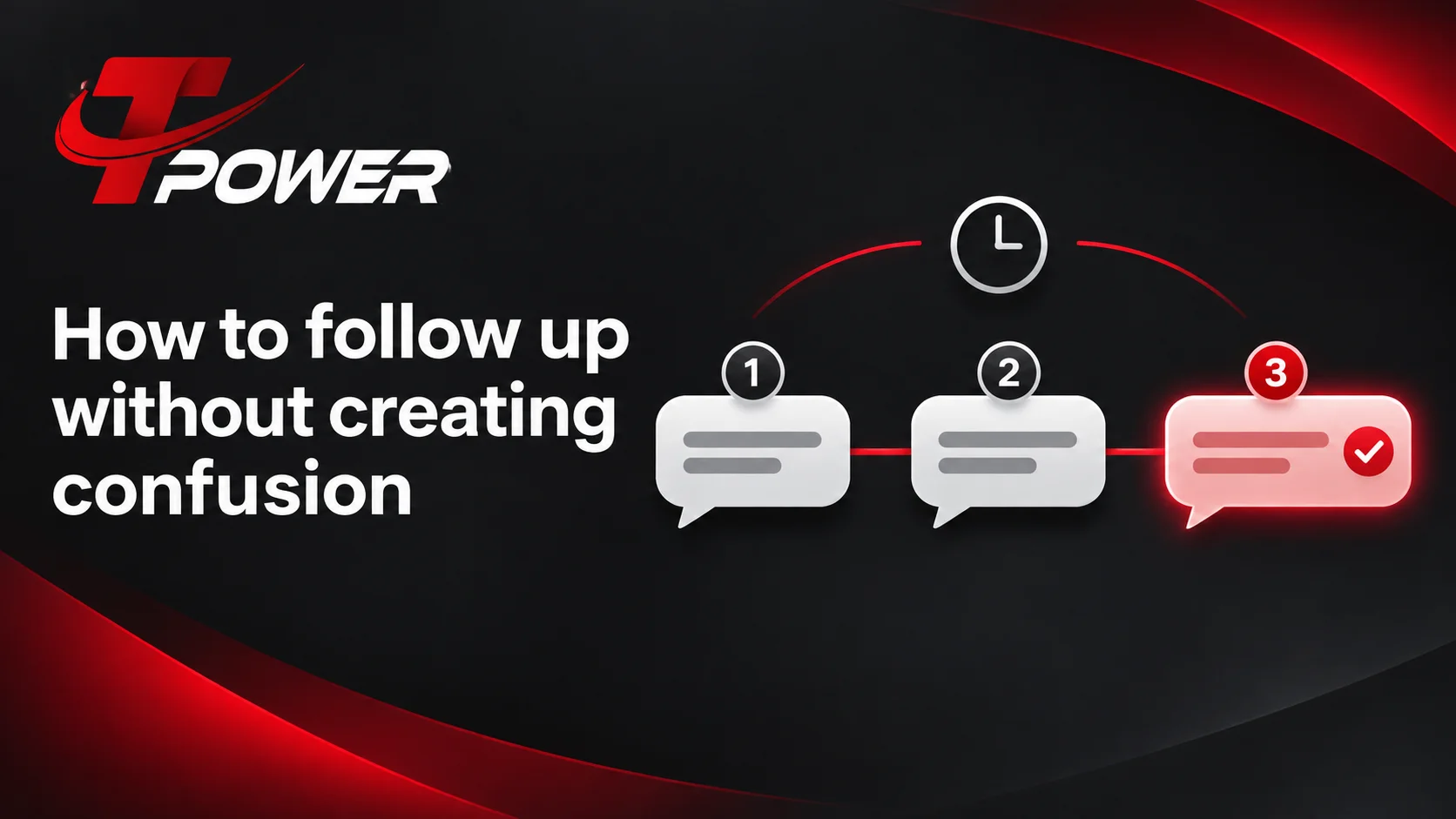
After sending a request, save a copy of the message and any reference number provided. If you need to follow up, use the same support route and include the reference number so the earlier conversation can be found.
Keep the follow-up focused on the original issue. State whether anything has changed since your first message and provide the new date or time if the issue happened again. Avoid sending many duplicate requests through different channels unless the official instructions tell you to do so.
If you receive instructions, read them carefully before taking the next step. If something is unclear, ask about that specific instruction. Do not send additional private credentials just because you are following up.
The site’s contact options and procedures can change. For the current route, check the TPower Help rather than relying on an old saved message or an unofficial post.
Common mistakes to avoid
Sending a message that is too vague
“Help, it doesn’t work” does not identify the page, time, or result. Add a short description of what you were trying to do and what appeared instead.
Mixing several unrelated issues together
If you have separate questions about login, a transaction, and an offer, list them as separate points. This makes it easier to respond to each one clearly.
Guessing at the cause
Describe what you observed instead of deciding that the problem must be caused by your device, the website, or a provider. Support can use the details to investigate the cause.
Sending sensitive information unnecessarily
A screenshot or message should not expose passwords, verification codes, or full payment credentials. Review attachments before sending them.
Repeating steps without recording the result
If you try a step, note what happened. That prevents you from repeating the same action without knowing whether anything changed.
Relying on old instructions
Offers, site layouts, and support procedures can change. Check the current Help page and relevant terms before following instructions saved from an earlier date.
Final checklist before you send your request
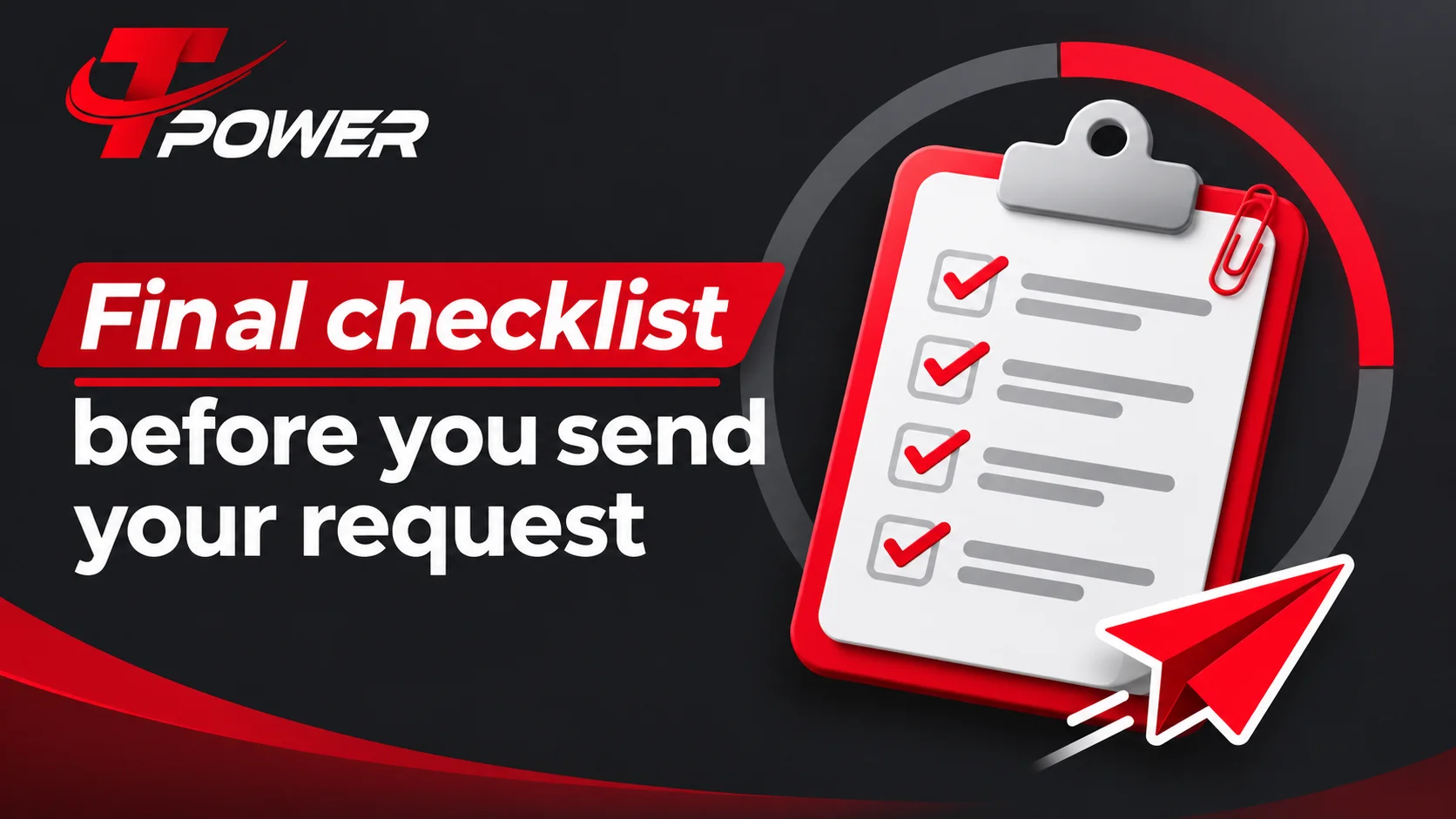
Before submitting a support request, check that it:
- Explains one main issue clearly
- Includes the approximate date and time
- Names the page or feature involved
- Includes relevant device or browser details
- Copies the error message accurately, if one appeared
- Describes only the steps you actually tried
- Asks a specific question
- Keeps passwords and verification codes private
- Uses the contact route currently shown on the Help page
A concise, accurate request gives support a clearer starting point and makes it easier for you to keep track of what you have already reported. For current support options and site information, return to T Power or use the Help page.
Frequently asked questions
What should I include when contacting support?
Explain the issue, when it happened, which page or feature was involved, and what you had already tried. For technical issues, include your device, browser, and any exact error message.
Should I send my password or verification code?
No. Keep passwords and one-time verification codes private. Do not include them in a support message, screenshot, or public comment.
Can I contact support without a screenshot?
Yes. A screenshot is optional unless the current instructions specifically request one. A clear written description may be enough to explain what happened.
What if I do not know which guide to use?
Start with TPower Help and browse the guides available there. The Tpower Tutorial Guide may be useful for step-by-step questions.
What should I do if a transaction status is unclear?
Record the status shown and when you checked it. Follow the current instructions on the site and ask support for clarification through the official Help route. Avoid creating a duplicate request unless the instructions say to do so.
What if my issue happens again after I contact support?
Save the reference number and note when it happened again. Follow up through the same official route and explain what changed, if anything.
Where can I read the terms for an offer?
Use Tpower Terms and Conditions and the current details shown for that offer. When you ask for help, identify the specific condition you want explained.
Where can I find other site articles?
Visit the TPower Blog to browse additional guides and informational articles.